Windows
To install/update our software, please follow the steps below:
1. Request an account from Grünig
- Before you can download, install or update the software, you need an account from Grünig. You must request this from Grünig Support.
💡
This account is a Microsoft Entra ID account that customers can use to log in.
- You will receive an email and an initial password with which you can log in.
- You will then be asked to change the password and set up Microsoft Authenticator.
💡
Microsoft will guide you through the setup
2. Download G-Installer
- Visit the G-Installer installation page.
❗
To download the G-Installer, you need your Grünig/Microsoft Entra ID to log in
- Download the latest version of G-Installer.
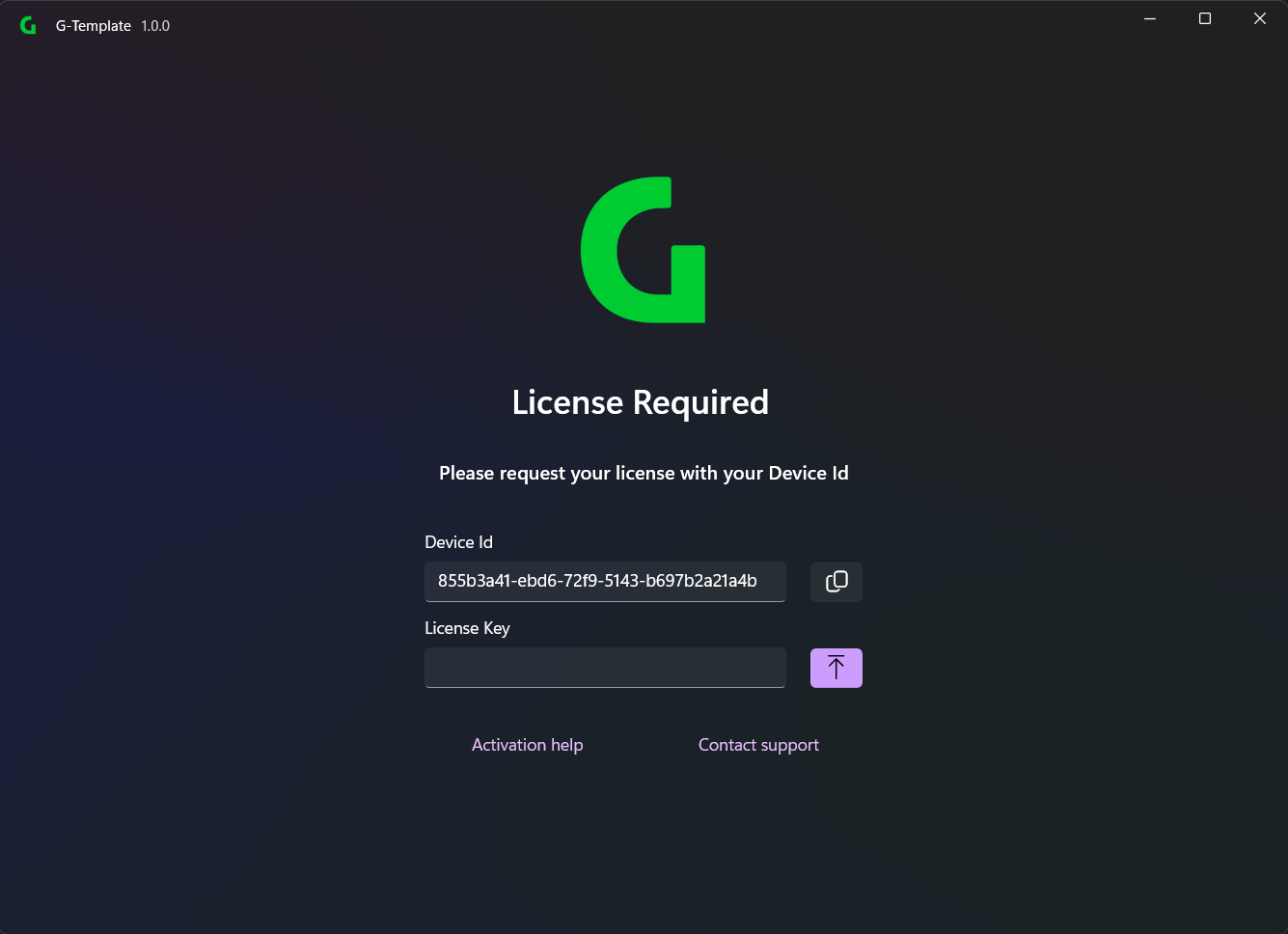
3. Request License
- Start the downloaded G-Installer.
- Request license from Grünig Support
ℹ️
See here for more informations
- Upload the license after you have received it from Grünig Support
4. Installing/Updating the software
-
Start the downloaded G-Installer.
-
Log in with your Grünig/Microsoft Entra ID account.
-
Select the software you want to install/update and follow the instructions in the installation wizard.
-
Once the installation is complete, you can start the software directly and begin with the initial setup.